A drawing, a pattern or a poster
on ordinary sheets
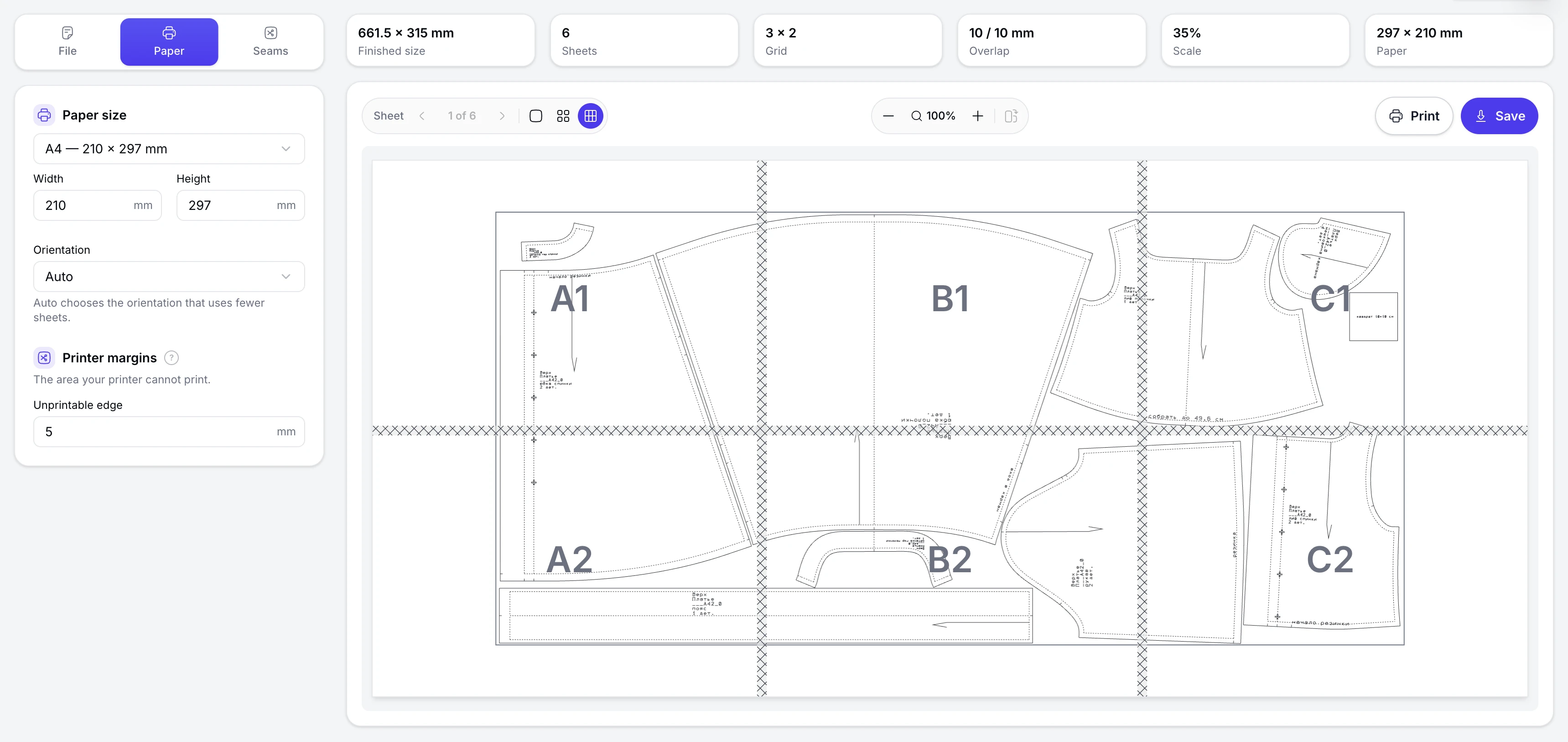
If a file is bigger than the paper in your printer, Splitizer divides it across several sheets you can print and assemble into one. Set the finished size and the tool works out the sheet count, the overlap, the cut lines and the assembly map. It’s free. Actually free.
- Free, no account.
- All sizes and exports are free. No sign-up, e-mail or payment card required.
- Runs in your browser.
- The file is processed on your device. Nothing is uploaded and nothing needs to be installed.
- Accounts for printer margins.
- Each sheet is calculated from the printable area of your printer, so the seams line up after assembly.
- Overlap for gluing.
- Set the overlap between sheets. Cut along the line and use the overlap to align and glue the sheets.
- Vector stays vector.
- PDF files are split without rasterizing them, so text and vector graphics stay sharp.
- Assembly map.
- A separate guide shows the complete layout and the position of every sheet.
What it does
Three ways to print a large-format file
Split a large-format file into printable sheets and get everything you need to assemble them.
One picture, many sheets
- Set the finished size in millimeters
- The sheet layout and count are calculated automatically
- Keep the original proportions
Features
Everything you need to print a large-format file
Choose the file, set its size and paper, adjust the overlap, then print or save the result.
The file
Supported file types and processing
- PDF stays vector — text remains text
- JPEG and PNG with selectable print resolution
- Multi-page PDFs are split page by page
- Files stay on your device
The size
Set the finished size
- Set the finished poster size in millimeters
- Print at true size — 1 : 1
- Use A0–A3 presets or enter any size
- See the required sheet count before printing
The paper
Choose the paper and printer settings
- A4, A3, Letter, Legal and custom sizes
- Portrait, landscape or automatic orientation
- Subtract the printer's unprintable margins
- Optimize the layout to use the paper efficiently
The seams
Control how sheets overlap and are assembled
- Set the overlap in millimeters
- Add a cut line at the overlap edge
- Highlight the overlap area
- Label sheets A1, B1, C1 for easy assembly
How it works
From file to finished poster in four steps
Upload the file, set the size and paper, then print and assemble the sheets.
Upload the file
Choose a PDF, JPEG or PNG from your device.
Set the size
Enter the finished size in millimeters, or use 1 : 1 for true size.
Choose the paper
Choose the paper size, orientation and printer margins, then set the overlap.
Print and assemble
Download the sheets and assembly guide. Print at 100%, cut along the lines and glue the sheets together.
Who it is for
When the print is larger than the paper
Use Splitizer whenever the finished size is larger than the paper in your printer.
Posters and signs
Print A2 or A1 posters on a regular desktop printer and assemble them from sheets.
Packaging mock-ups
Print a packaging dieline at full size, assemble it and check the box before production.
Patterns and stencils
Print sewing patterns or stencils at their actual size.
Plans and drawings
Print floor plans and technical drawings at 1 : 1 without going to a copy shop.
Classrooms and studios
Print maps, diagrams and large images for classrooms, workshops and studios.
Trade fairs and pop-ups
Create large graphics for events and stands when you need them printed the same day.
FAQ
Frequently asked questions
Is Splitizer free?
Yes. All sizes, sheet counts and exports are free. No sign-up or payment card required.
Is my file uploaded?
No. The file is processed in your browser on your device and is never sent to a server.
Which file formats are supported?
PDF, JPEG and PNG. Multi-page PDFs are processed page by page.
Why do the outer sheets have white borders?
The poster size rarely divides evenly into printable sheets. By default, the extra space is left at the outer edges and can be trimmed off. Turn on “Spread slack between seams” to move that space into the overlaps instead — this removes the outer borders but makes the overlaps wider.
What overlap should I use?
10 mm is the default and works well for most projects. A wider overlap is easier to align and glue, but uses more paper.
Will the sheets line up correctly?
Yes, if you print at 100% and use the same paper and unprintable-margin settings used for the calculation.
Print your poster at home
Set the size, download the sheets and print them at 100%.